Your AI Dispatcher Is Ready: 15 Ways to Run Serfy from ChatGPT, Claude and Copilot


It's 7:40 on a Monday. The service inbox has 23 new emails, two technicians are off sick, a client wants to know where their engineer is, and your accountant needs last month's billable hours by lunch. Each of those jobs means opening three or four apps, searching, copying and pasting, and on most Mondays they eat the first two hours of the day.
Now picture typing this instead:
That isn't a concept video. It's what Serfy's AI connectors do: they let ChatGPT, Claude and Microsoft Copilot work in Serfy as you, next to your mailbox, calendar, spreadsheets and accounting software. The assistant reads, plans and asks. You approve. It does the clicking.
Below are 15 ways to use it, grouped by the job they take off your plate: dispatcher, service desk, project manager, maintenance planner, billing assistant and analyst. Each one comes with the words to type, so you can copy them, change the names and try them on your own work.
The 15 jobs at a glance
| No. | The job | What you type | What it connects |
|---|---|---|---|
| 1 | Morning dispatch check | "What's overdue or unassigned, and who has room?" | Serfy |
| 2 | Sick-day reshuffle | "Mark is off sick. Move his jobs and tell the clients." | Serfy |
| 3 | Emergency dispatch | "Leak at Riverside. Get someone there now." | Serfy, mailbox |
| 4 | Inbox to work orders | "Turn this morning's requests into tasks." | Mailbox, Serfy |
| 5 | Status questions | "Answer this email from the Serfy task." | Mailbox, Serfy |
| 6 | Moving a visit | "Offer two new slots, then reschedule." | Mailbox, Serfy |
| 7 | Multi-site rollout | "Create a task at every store on this list." | Spreadsheet, Serfy |
| 8 | Weekly project update | "How's the rollout going? Write the client update." | Serfy, mailbox |
| 9 | Maintenance schedule | "Set up the schedule of works in this contract." | PDF, Serfy |
| 10 | Month-end invoicing | "Invoice Northgate for November's finished work." | Serfy, QuickBooks |
| 11 | Subcontractor bill check | "Does this invoice match the work in Serfy?" | Mailbox, Serfy |
| 12 | Billing dispute | "Answer this complaint with the facts." | Mailbox, Serfy, QuickBooks |
| 13 | Weekly management review | "Write the weekly review and post it for the team." | Serfy, Slack |
| 14 | Client reviews and upsell | "Which assets keep failing? Draft the review." | Serfy, mailbox |
| 15 | Ordering from providers | "Order this repair and chase what's late." | Serfy, mailbox |
How it works
Serfy's AI connectors use the Model Context Protocol (MCP), the open standard that ChatGPT, Claude and Microsoft Copilot use to connect to business software. Your company gets its own Serfy server address. Each person adds it to their assistant once, signs in to Serfy and clicks Allow. From then on, the assistant can use Serfy the way that person would.
The clever part is what sits next to Serfy. The same assistant is usually connected to your mailbox, calendar, files, team chat and accounting software, each through its own connector. So one request can read an email, check the job history in Serfy, create the work order and draft the reply. That's four apps, and a lot of copy and paste, that you no longer do by hand.
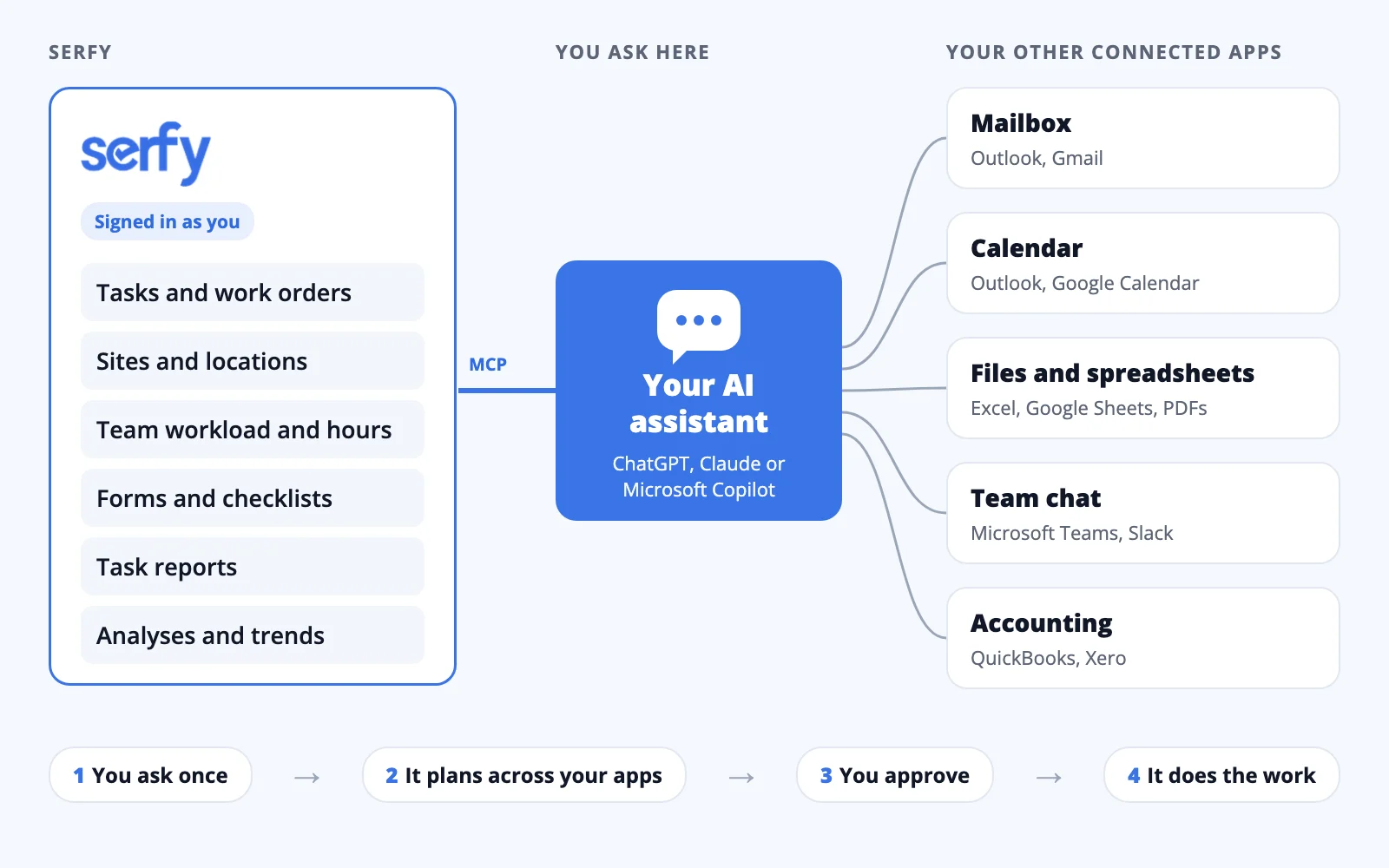
What the assistant can do in Serfy
| Area | What it can do |
|---|---|
| Tasks | Find tasks by status, person, site or address, service, client, priority, dates or words in the description, and count them. Open any task with its notes, forms and hours. Create tasks, and assign, reschedule and reprioritize them, change their tags and rewrite their descriptions |
| Sites | Find your locations with their open tasks, and add new ones where your role allows it |
| Team | See each person's workload (today, this week, overdue, unscheduled) and the hours they worked and drove |
| Forms and files | Attach your forms and checklists to tasks and fill in their fields, and attach files. Photos and signatures are still collected in the Serfy app |
| Messages and reports | Post in a task's internal chat or in the chat the client sees, and email a finished task's report to the client. Anything the client will see is shown to you as a preview first |
| Planning | Create recurring tasks that repeat every so many days, weeks, months or years |
| Analysis | For admins and dispatchers: what to improve, efficiency by service, busy sites and failing assets, money and margins, and monthly trends |
The assistant works as you. It sees the tasks, sites and people you see in Serfy, and its changes go through the same permissions, rules, SLA clocks and notifications as yours. Technicians can't connect an assistant at all.
Serfy also has its own AI Copilot inside the app. The connectors are for when you'd rather work in the assistant you already use every day, next to your email and your books.
The virtual dispatcher
Dispatching is a stream of small decisions, and each one needs three screens: the task list, the team's schedule and the phone. These three examples hand the screens to the assistant.
1. The morning check that fixes itself
Most dispatchers start the day by filtering the task list for overdue work, then for unassigned work, then opening each technician's day to see who has room. That's twenty minutes of clicking before the first decision.
Ask:
What's overdue, what's unassigned and who's overloaded today? Suggest fixes.
What the assistant does:
- Searches Serfy for overdue tasks and for open tasks with nobody responsible.
- Checks the team's workload: who has the most jobs today, who has gaps and who is already behind.
- Proposes a plan, for example: "Give the two overdue Northgate jobs to Anna, move the routine filter change at Harbour Point to Thursday, and give the three new requests to Luis."
- When you say yes, it assigns and reschedules the tasks and posts a note in each task's internal chat, so the technicians know why their day changed.
The first hour of the day shrinks to the first few minutes, and the decisions stay yours.
2. The sick-day reshuffle
A technician calls in sick at 7:15. Their jobs need new owners, the routine visits need new dates, and the clients should hear about it before they start waiting.
Ask:
Mark is off sick today and tomorrow. Give his urgent jobs to whoever has the lightest day, move his routine visits to next week, and let each client know in the task chat.
What the assistant does:
- Finds Mark's tasks planned for today and tomorrow, with their priorities.
- Compares the rest of the team's workload, and proposes who takes which job and new dates for the routine visits.
- After your OK, reassigns and reschedules the tasks. Serfy applies its own rules and notifications, exactly as when you make the change yourself.
- Writes a short note for each client. The task chat is visible to the client, so every note comes back to you as a preview, and nothing is posted until you agree.
3. The 4:55 pm emergency
A facility manager emails: water is coming through the ceiling of the server room. You need the right person on the way, the job logged with the clock running, and the client told what happens next.
Ask:
Emergency at Riverside Medical Centre: water is leaking into the server room. Create an urgent plumbing task, give it to whoever is doing plumbing work closest to Riverside today, and pass on the access details from Sarah's email.
What the assistant does:
- Finds Riverside Medical Centre in Serfy and the plumbing services available there. If the site has a client and no default task type, it asks whether the job is for the client or for your own team instead of guessing.
- Looks at today's plumbing jobs to see who is working nearest to Riverside and how full their day is. The assistant doesn't track anyone's location: it goes by the addresses of the jobs.
- Creates the task at the top of your priority scale, assigned to that technician. Serfy sets the reaction deadline from the service's priorities and starts the SLA clock, as if you had typed the task in yourself.
- Posts the access details in the task's internal chat and drafts the reply to Sarah, with the task number and who is coming.
The service desk that answers your inbox
Most service requests still arrive by email, and most of the questions after them are the same three: did you get it, when are you coming, and can we change the date. With your mailbox and Serfy connected to the same assistant, the answers come straight from the job record.
4. Turn the service inbox into work orders
Every morning someone reads each request, works out which site it's about, checks it isn't already logged, picks a service and a priority, creates the task and writes back with the number. Ten requests take most of an hour.
Ask:
Go through the service inbox since 5 pm yesterday. For each request, find the site in Serfy and check whether there's already an open task for the same problem. If there isn't, create one with the right service and priority. Draft a reply to each sender with their task number. Show me the list before you create anything.
What the assistant does:
- Reads the new emails and skips newsletters and automatic replies.
- Matches each request to a site from the address, the building name or the sender's signature, then searches that site's open tasks for the same problem.
- Picks the service from the ones Serfy offers at that site. If the service asks for a form to be filled in when a task is created, it fills it in from the email or asks you for the missing answers.
- Shows you the plan: the new tasks, the duplicates with their existing task numbers, and anything it isn't sure about.
- After your OK, it creates the tasks and leaves the replies as drafts in your mailbox.
Photos from the client can go on the task as well. In ChatGPT, add them to the chat. Other assistants attach files from a link.
5. Answer "where's my technician?" in seconds
Clients rarely log in to check a job. They email. Answering means finding the task, reading its latest status and the technician's notes, and turning all that into a polite reply.
Ask:
Answer this email using the Serfy task.
What the assistant does:
- Finds the task from the client, the site and the problem described in the email.
- Reads its status, planned time, technician and latest comments, for example "Picked up the replacement pump".
- Drafts the reply with the facts and the task number. It can post the same update in the task chat, so it's on record next to the job.
6. Move a visit without the phone tag
A client asks to move Thursday's fire alarm test because the building will be closed. Finding a slot that suits both sides usually takes three emails and a phone call.
Ask:
Kate wants to move Thursday's fire alarm test at Harbour Point. Find two slots next week when Priya has room and offer them in a reply.
And when Kate answers:
They picked Tuesday at 9. Reschedule it.
What the assistant does:
- Finds the test at Harbour Point and Priya's planned work for next week.
- Drafts a reply offering her two quietest mornings.
- When the client chooses, it changes the task's planned start and deadline in Serfy, in your time zone.
If your calendar is connected too, ask the assistant to block the time there as well.
The project manager
Projects in field service are rarely one big job. They're a hundred small ones: a filter change at 38 stores, a lighting retrofit on 12 floors, a meter swap across a housing estate. The hard part is creating all that work and keeping track of it, and both are things an assistant does well.
7. Launch a 38-store rollout from a spreadsheet
The client sends a spreadsheet of 38 stores and wants the filters changed in March. Someone has to create 38 tasks, put each one at the right site, spread them over the month and attach the checklist.
Ask:
Use the store list in this spreadsheet. Create a "Replace AHU filters" task at each store in March, two stores a day per technician: the northern stores to Anna and Mark, the southern ones to Luis and Priya. Start each description with GLF-FILTERS-27, tag them "Greenleaf rollout" and attach the "Filter replacement checklist" form. Show me the plan first.
What the assistant does:
- Reads the spreadsheet, whether you add it to the chat or it sits in Excel or Google Sheets behind their own connectors.
- Matches each store to its site in Serfy. Stores that aren't in Serfy yet come back as a list, and it adds them as new sites once you've checked the addresses.
- Proposes the schedule: who goes where, on which day.
- After your OK, it creates the 38 tasks with their dates, technicians and tags, and attaches the checklist to each one.
An afternoon of copy and paste takes a few minutes, and every task comes out the same: same service, same checklist, same tag.
Put a project code at the start of each task description. The assistant finds tasks by the words in their descriptions, so the code puts the whole project one search away.
8. The Friday project update, written for you
Ask:
How's the Greenleaf rollout going? Search for GLF-FILTERS-27 and give me done, in progress and overdue, with the blockers from the technicians' comments. Post a reminder in the internal chat of anything overdue, then draft the weekly update to Greenleaf's facility manager with links to the reports of the stores we finished this week.
What the assistant does:
- Counts the project's tasks by status and lists the overdue ones.
- Opens each overdue task and reads the technicians' comments and status notes.
- Posts a reminder in each overdue task's internal chat, which only your company sees.
- Makes the report of each store finished this week from your own report template, and drafts the client update with the links.
The maintenance planner
9. Turn a signed contract into a maintenance schedule
A new maintenance contract is signed. Its schedule of works lists quarterly fire extinguisher checks at 12 buildings, a monthly emergency lighting test and an annual boiler service. Until someone sets all of that up, the contract lives only in a PDF.
Ask:
Here's the signed contract with Northgate. Set up its schedule of works in Serfy as recurring tasks starting in January: fire safety for Priya, boilers for Mark. Show me the list first.
What the assistant does:
- Reads the schedule of works from the PDF.
- Finds each building in Serfy and the right service for each job.
- Shows you the plan: what repeats, how often, where and for whom.
- After your OK, it creates the recurring tasks. Serfy then creates each visit on its date, with the description, service, forms, tags and technician you agreed, just as the Schedule planner does.
Planned maintenance stops depending on someone remembering it. Read more about recurring maintenance in Serfy.
The billing assistant
Money is where copy and paste hurts most, because a mistake goes straight onto an invoice. Serfy holds the evidence: what was done, when, by whom, for how long, and the report. Your accounting software holds the invoices. An assistant connected to both can carry the facts across and check one against the other.
Intuit's QuickBooks connector for Claude, and its plugin for ChatGPT, can create and send invoices and estimates. Xero connects through third-party connectors listed on the Xero App Store.
10. Month-end: from finished work to a QuickBooks invoice
At the end of the month, someone lists every finished job for each client, looks up the hours, finds the service reports and types it all into the accounting system.
Ask:
List the tasks we finished for Northgate Offices in November, with the hours on site and a report link for each. Then create a draft invoice in QuickBooks for Northgate: one line per task at €68 per hour, with the task number and report link in the description. Don't send it.
What the assistant does:
- Searches Serfy for the Northgate tasks finished in November.
- Opens each task for the time each technician worked, and makes its report from your report template.
- Shows you the list and the totals.
- After your OK, it creates the invoice in QuickBooks and leaves it there for you to review and send.
If you record prices in Serfy, also ask: "Which client tasks did we finish last month with hours but no revenue or invoice?" Serfy's money analysis lists them, which is the quickest way to find the work that slipped through. The assistant sees prices only if your role does.
11. Check a subcontractor's bill before you pay it
A subcontractor sends an invoice for three visits and 12 hours on the Riverside chillers. Is it right? Usually nobody checks, because checking means finding the work orders and adding up the times.
Ask:
Check CoolAir's invoice in my inbox against the work we ordered from them in Serfy. Were the visits done, and do the dates and hours match?
What the assistant does:
- Reads the invoice attached to the email.
- Finds the tasks ordered from CoolAir at Riverside, with their status, their dates and the time their technicians logged on each one.
- Compares them line by line and lists the differences.
- Drafts a polite reply asking for a corrected invoice, for you to check.
This works because Serfy runs orders to other providers through the same task: when your subcontractor's technicians work in Serfy, their times are on the job you ordered.
12. Settle a billing dispute with evidence
A client disputes an invoice: "You billed six hours, and your technician was here for less than two." The answer is in Serfy, spread across a task's timers and its report.
Ask:
Northgate disputes the hours on task 2611120031. Check what Serfy recorded and draft a reply with the facts and the service report.
What the assistant does:
- Opens the task: who worked on it, how long each person worked and drove, and the status notes.
- Makes the service report from your report template.
- Drafts the reply. For example: two technicians were on site for 1 h 50 min each, which is 3 h 40 min of work, plus the travel your contract bills, with the report attached as a link.
- If the client has a point, it corrects the invoice in QuickBooks after your OK.
The operations analyst and account manager
13. The weekly management review, in your team channel
Everyone agrees to review the numbers every week. Few teams keep it up, because someone has to pull the figures and make sense of them.
Ask: if your assistant lists Serfy's prompts, choose Weekly review. Otherwise, type:
Write this week's review of our service work: the three to five things most worth acting on, with numbers and example tasks, then what improved. Post it to #operations in Slack.
What the assistant does:
- Runs Serfy's analyses: the top findings of the last 30 days, the monthly trends and, if your role sees prices, the money analysis.
- Picks the few findings that matter most, each with its key number, example task links and a next step.
- Posts the summary to your team channel through the Slack connector, or gives you the text to paste into Teams.
The analyses point at what to check, with example tasks to open. They're leads for a conversation, not verdicts, and they come with a list of what your company could record to get sharper answers. If you want to know how the figures are defined, our guide to field service management metrics explains them.
14. Turn repeat failures into client reviews and sales
The material for a strong quarterly review, and for your next replacement proposal, is already in Serfy: which sites keep calling you back and which assets keep failing.
Ask:
Which locations and assets had the most repair work this year, and where is it growing? For Harbour Point Mall, draft a quarterly review email: what we did, what's still open, the assets that keep failing, and a replacement proposal for the worst one.
What the assistant does:
- Runs Serfy's location analysis: the busiest sites, the sites whose repair work is growing, and the assets with repeated failures, with example tasks.
- Pulls Harbour Point's tasks for the quarter by status.
- Drafts the review email with the numbers and links, ready for you to edit. Ask for a slide deck instead, and most assistants will build one.
Asset findings depend on linking tasks to assets. When the data is thin, the analysis says what to start recording.
If you order work from service providers
Serfy also connects the companies that own and run buildings with the providers who maintain them. If you're on the ordering side, as a facility manager or a property company, the assistant works for you too.
15. Report a fault in one sentence and chase what's late
Ask:
A tenant at Unit 4 says the roller door is stuck open, and the photo is in this chat. Order a repair from our door contractor. Then list every request of ours that's overdue, and draft a chaser email for the three oldest.
What the assistant does:
- Finds Unit 4 and the door repair service your contractor offers there.
- Creates the order with the tenant's description and photo. Your provider receives it in Serfy with its reaction deadline already set.
- Lists your overdue requests with their status and provider.
- Drafts the chasers, each with the task number and how long it has been overdue.
Write your own: the recipe behind every example
All fifteen examples follow the same pattern, and yours can too.
- Ask for the outcome, not the clicks. "Get someone to the leak at Riverside" works better than a list of steps. The assistant works out which searches and changes it needs.
- Name the systems. Say "in my inbox", "in Serfy" or "in QuickBooks". It removes the guesswork when several connectors could answer.
- Ask for the plan first on anything big. "Show me the list before you create anything" gives you one review instead of thirty.
- Keep outgoing messages as drafts. Say "draft, don't send" until you trust a routine.
- Narrow the big questions. In a busy company, "every overdue task ever" is too much for one lookup. Add a period, a site, a client or a person, and the answer comes back in seconds.
- Put project codes in task descriptions. The assistant searches descriptions, so one code finds the whole project.
When a prompt works, save it in your assistant (as a project, a custom instruction or a saved prompt) so the whole team can run the same routine.
More prompts to try
Dispatchers
- "Which tasks are planned for tomorrow but still have nobody assigned?"
- "Who has the most overdue work, and which of it is urgent?"
- "Move all of Anna's routine jobs on Friday to Monday, at the same times."
- "Which tasks at Riverside Medical Centre are still open, and what is each one waiting for?"
Service desk
- "Is there already an open task about the lift at Harbour Point?"
- "Find all open tasks for Northgate and draft a status update to their facility manager."
- "Attach the gas safety checklist to task 2611230017 and fill in the readings from this email."
- "Email the report of task 2611230017 to the client contacts on its site."
Managers and owners
- "What should we improve this quarter?"
- "Are we getting better at fixing things on the first visit?"
- "How many hours did the team work last week, and how much of it was driving?"
- "Which clients and services have the lowest margins?"
- "Which sites have growing repair work, and which assets should we offer to replace?"
Safe enough to let it work
An assistant that can create work orders and email clients needs firm limits. These are built in:
- It's you, with your permissions. The assistant signs in to Serfy as the person who connected it and sees what they see. Its changes pass through the same permissions and rules as yours, and technicians can't connect an assistant.
- Two switches, both your admin's. An admin switches AI connectors on for the company, after accepting the privacy terms, and decides separately whether assistants may make changes. Until they allow changes, assistants can only read.
- It asks first. Serfy instructs the assistant to confirm every change with you before making it. Messages the client will see and reports emailed to clients are held as a preview, and nothing is posted or sent until you agree.
- Everything is marked and logged. Changes appear in the task's history and in Serfy's Audit Trail as made through the assistant, by name, and Serfy logs every lookup.
- Some things stay human. The assistant can't finish, close or approve work, approve quotes, create invoices in Serfy or delete tasks, and it never sees where your technicians are.
- One click cuts it off. Each person can disconnect their assistant under Connected AI apps, and admins can see and disconnect everyone's. Switching connectors off cuts every assistant off at once.
One choice is yours: the AI account you connect. The assistant's provider processes your data under the terms of that account, and personal and free AI accounts may use conversations to train their models unless that is switched off. Connect business accounts, such as ChatGPT Business or Enterprise, Claude Team or Enterprise, or Microsoft 365 Copilot.
Set it up in ten minutes
- Check your plan. AI connectors come with the Serfy Enterprise plan.
- Switch them on. An admin opens the user menu, chooses Connected AI apps, switches AI connectors on and accepts the privacy terms. To let assistants make changes, the admin also sets Changes to Allowed.
- Copy the server URL. It's on the same page, and it works only for people in your company.
- Add Serfy to your assistant. In Claude or ChatGPT, add a custom connector with the server URL. In Microsoft Copilot, add it as an MCP tool to an agent in Copilot Studio. The assistant opens Serfy, where you sign in, check what it asks for and click Allow. On business plans, the workspace admin may need to allow custom connectors first.
- Connect the rest. In the same assistant, add the connectors for your mailbox, calendar, files, team chat and accounting software.
- Ask your first question. "What's overdue today, and who has room to take it?" is a good start.
FAQ
What are Serfy's AI connectors?
They let AI assistants such as ChatGPT, Claude and Microsoft Copilot work in Serfy as the person who connected them. The assistant can find and read tasks, sites, workloads, hours, forms, reports and analyses and, when your admin allows changes, create and update tasks, post messages and send reports, always after confirming with you.
What is MCP?
The Model Context Protocol is an open standard for connecting AI assistants to business software. ChatGPT, Claude and Microsoft Copilot all support it, which is why one Serfy connector works in all three.
Which AI assistants work with Serfy?
Claude and ChatGPT connect by signing in to Serfy, and Microsoft Copilot connects through an agent built in Copilot Studio. Other assistants that support MCP connectors can connect too. Use a business account, because personal and free AI accounts may use conversations for training unless that is switched off.
Can the assistant change things without asking?
Not by design. Changes are possible only after an admin allows them for the company, and Serfy instructs the assistant to confirm each one with you first. Messages the client will see and reports sent to clients are held as a preview until you agree, and every change is marked in Serfy as made through the assistant.
Who in my company can connect an assistant?
Admins, dispatchers, group owners and reporters can. Technicians can't. Each assistant sees only what its person sees in Serfy, and the company-wide analyses are for admins and dispatchers.
Does it work with Outlook, Gmail, QuickBooks and Xero?
Yes, through your assistant. Serfy connects to the assistant, and the assistant connects to your other tools through their own connectors, such as Outlook and Gmail, Microsoft and Google calendars, Excel and Google Sheets, Teams and Slack, QuickBooks, and Xero through connectors on the Xero App Store. It then works across all of them in one conversation.
Can the assistant close tasks or create invoices in Serfy?
No. Finishing, closing and approving work, approving quotes and creating invoices in Serfy stay with people. The assistant prepares everything around them: it finds the finished work, makes the reports and, through your accounting software's own connector, drafts the invoice there.
What does it cost?
AI connectors are included in the Serfy Enterprise plan. Your AI assistant's subscription is separate. See pricing for the plans.
Your next hire is already on your laptop
Most field service teams don't need another screen. They need fewer of them. With Serfy connected to the assistant you already use, the morning check, the inbox, the project update and the month-end invoice each become a sentence, and the time goes back to the work itself.

Founder & Global CEO of Serfy. A software engineer by background, Povilas has spent over a decade architecting mission-critical field service workflows, 100% offline SQLite mobile engines, and automated billing pipelines powering 2.7M+ completed work orders worldwide.